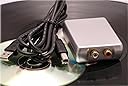
![Xitel INport Deluxe [Record from Your Stereo to Your Computer]](https://m.media-amazon.com/images/I/41hO3eqv1+L._AC_SL3840_.jpg)


Buy anything from 5,000+ international stores. One checkout price. No surprise fees. Join 2M+ shoppers on Desertcart.
Desertcart purchases this item on your behalf and handles shipping, customs, and support to Vietnam.
๐ถ Capture Your Sound, Elevate Your Experience!
The Xitel INport Deluxe is a user-friendly audio interface that allows you to record high-quality sound directly from your stereo to your computer. With its plug-and-play functionality and automatic driver installation, it eliminates the need for complex setups, making it the perfect solution for both amateur and professional audio enthusiasts.
| ASIN | B000HE7M3M |
| Audio Output Mode | Stereo |
| Best Sellers Rank | #302,051 in Electronics ( See Top 100 in Electronics ) #1,771 in Audio & Video Turntables |
| Brand | Xitel Technologies |
| Compatible Devices | Ipod, Watch |
| Customer Reviews | 3.9 out of 5 stars 324 Reviews |
| Global Trade Identification Number | 00643153065399 |
| Hardware Connectivity | USB |
| Hardware Interface | USB |
| Hardware Platform | x86 |
| Item Weight | 1.6 Pounds |
| Manufacturer | Xitel Technologies |
| Maximum Sample Rate | 48 KHz |
| Mfr Part Number | INPDEL-I1-X1 |
| Model Name | INPDEL-I1-X1 |
| Model Number | INPDEL-I1-X1 |
| Platform | Windows 2000, Windows Me, Windows XP |
| Signal-to-Noise Ratio | 120 dB |
| Surround Sound Channel Configuration | 5 1 |
| UPC | 643153065450 999992446364 643153065429 115970905955 643153065399 |
B**.
It WORKS - if a problem contact Xitel support
See my revision below for why I changed my review from 4 to 5 stars.... the problems I had were NOT the fault of Xitel They responded and gave support. While I had already solved my problem, they DID respond. ### OLD REVIEW ### First, this device does EXACTLY what it claims - it connects stereo components (I only tested cassette, but claims to do any, and I don't see why it wouldn't) to a PC and allows audio data (typically music, but could be anything) to be transferred from the component to the computer. BUT, there are a couple of twists. I'll describe what worked for me in the hope it will help others. First, on my Windows 7 system the device installed without issue. Windows recognized it and installed the necessary drivers. All good. But, the included software is useless. It might be great, but I don't know, because the registration keys were not included. And forget customer service. There was a handwritten contact in the back of the manual, but the number was no longer in service. Sent an email, no reply. Looked up the SW manufacturer's website and they state that the SW on the CD is from 2007, is no longer supported, but you can buy an upgrade. Whatever. DON'T PANIC. Just download a freeware recording package, like Audacity. Google it. It is used by thousands of recording musicians, and is very easy to use. It does everything the included software does and more... and better. It is VERY powerful, and it is FREE. There are many other freeware, open source products out there, I just happen to find Audacity easy to use. To get Audacity to recognize INport, you need to go into your Control Panel to Manage Audio Devices (varies with the OS), and select INport under 'Recording'. You might have to disable other items to force the system to go to the INport. Again, no biggie. Once you have set up the input device, it should automatically be detected by Audacity. If not, you should be able to select it from the main screen. On MY system it is 'Microphone (INport)' and NOT 'Line (INport)'. Go figure. Hit record first, then start your stereo component, and Audacity should start recording your material, which you will see by the wave file appearing on the screen. You may or may not be able to hear the file during recording; it depends on your system. I cannot, but it is not important to me; I just wanted the files transferred. Once you are finished recording, you can 'Export' to a .WAV format (or MP3, or whatever works for you) in Audacity, and you are done. Or, you can edit the file, just like any other audio file. Just be sure to export as a file in a format your player can use, not the default Audacity format. On my system the INport device affects playback, and the music plays out through my monitor speakers (very tinny), and not my amped computer speakers, which threw me at first. Once I disconnected the INport, I was able to re-enable my standard speaker set-up and everything was fine. Quality of recordings is excellent. So, the INport will transfer your audio files to digitally save on your PC. From there, you can do whatever you want with the files. For that reason I gave the product 4 stars, taking one off for the lack of functional software and non-existent customer support. Hope this helps some people. Oh, one other thing. ON THE BOX it states that a turntable must be hooked up to a receiver/amp and the LINE OUT from the rec/amp used as the input for the INport. The INport does not have a pre-amp, which a turntable requires. ### REVISED 09 July 2014 ###: I need to point out that this post has gone up against a different seller. I DID NOT buy mine from Xitel. I bought mine from MYeHUT Inc. I heard back from Xitel support last night, and they wrote that others have been selling used INPorts on Amazon without registration numbers. Since there were written notes in my manual, I have to figure that was the case for me, even though it was sold as 'New'. Never expected that on Amazon. Anyway, they sent me a link to a website to download and included a registration number in the email. All three software packages installed and worked. They are simple, but they do what they are supposed to do - record, rip, remove clicks and pops. So, I revised my score to 5 stars - product worked, software works, customer support works. Problem was with the other seller. THANKS, Xitel.
T**S
Works very well, but pay close attention to your file details!
***** UPDATED, JUNE 15, 2016 ****** I had tried to find out if this device and the software would work with Microsoft Operating System Windows 10 (TEN). I had used it originally with Windows Vista, then Windows 7 64-bit edition. There was absolutely NO information about whether or not it would work with Windows 10 anywhere I looked. With the deadline for the free upgrade to Win 10 fast approaching, and because the whole miserable process of continuing to get Updates in Windows 7 is so TORTURED, I decided to trust the Windows on-board assessment tool that told me all my software (including the Xitel INport software) would be compatible with Windows 10 also. Many people have had trouble using software on their computers which the Windows 10 assessment tool said should work OK. Nevertheless, I decided to trust it this time, and so far the Xitel software has worked exactly as before. I really do like the Xitel INport and I recommend it to people who are willing to invest some time and diligence in making digital copies from vinyl records and cassette tapes. That said, it would probably be a really GOOD idea if the company would offer advice about which Operating Systems are compatible with the product. **************************************************************************** I use the method of taking my vinyl record audio right out of the headphone jack of my amplifier, into the INport Deluxe converter, and feeding into my laptop computer via USB cable. You get total control of the volume being recorded by the software that way, and it means that you can take audio from ANY source that comes through your amplifier and make a copy of it. So, I can feed audio output from my AR turntable, and also my cassette deck, too. Although the instruction manual is written better than most, it still lacks all the detail and clarity it should have! It really hasn't been updated since Microsoft Vista, and there are a some slight differences you need to know about for Windows 7. You'll have to browse those up on the internet because they aren't included in the owner's manual. I compared my kit with that a friend of mine got a few years ago, before the release of Windows 7, and everything was identical except that my instruction manual is about one inch larger (same text). Pay very close attention to how you name your files in "Music", and how you route files for recording, and, editing. The various sections of software are separate, and although they are compatible, they don't "talk" to each other. You've got to be certain that each part of the software knows exactly which file-set you want to work with, and WHERE it's going to go when you've modified/edited/cleaned it. The "source" and "target" software doesn't change automatically, so you have to monitor that very closely. What I'm saying is, don't take anything regarding files or file names for granted! I'm not trying to say anything bad about the software, which works very, very well -- but you are going to have a bit of a learning curve that will be made more frustrating if you don't pay close attention to where you put files, and what you use them for, and where you send a "finished" file. Example: When I made a copy of my "Beggars Banquet" album, I piped it into a file I called Beggars Banquet, raw. When I modified it, cleaned it up, and divided up the tracks, I "targeted" that to a totally different folder I called Beggars Banquet, finished. The "de-clicker", "de-popper" works exceptionally well, and even provides different intensities of "cleaning". Result: my 40-year old records sounded almost totally brand new! And, no, it's not a "filter". It's more sophisticated than that, and it is effortless and automatic to use, once you know what you're doing. To make my CD copies, I used Nero 9, but you can use many different "burning" softwares. It is very easy and doesn't need any "ripping" because everything is created by the INport Deluxe software initially as WMA files, and those get picked up immediately by Nero 9 and burned right onto blank CD's with no extra modification at all. Manage your files, learn to "ride" this "bicycle" with a little patience, and you'll master it soon enough. Oh, and arrange your work area so that it is EASY to handle the records, the turntable, the computer, the cabling, etc. I hooked everything up in a corner where I can reach everything from my chair and that makes life a lot easier. Hey, it's a very good product, and it works consistently well -- and, the price is very reasonable, too. Good luck!
B**S
Not Vista Friendly and Wipes out your soundcard
[...]. I was very excited initially, to convert 100+ professionally mixed 90 minute cassettes from the days that I owned a chain of dance clubs. I have always worried about them deteriorating since there are many cuts that were from artists in both rock and r&B, which are totally inaccessible today. I suspect from the many 5 star reviews that this might be a good product but my experience was extremely frustrating. I am pretty electronically savvy and have been using PC's since 1993. Plugged Inport Deluxe into my USB port on a Dell laptop running Vista (high powered system with 4 gig of RAM and plenty of horsepower). At any rate, the user manual is confusing, incomplete, and not in synch with Vista. During set up, several of the screen prompts that they said I would see, with the expected drop down menus in Vista, were not accurate in the "manage audio devices". Xitel was "out to lunch", telling you what to enable and disable. Vista has Sigmatel Hi Def Audio Codec speaker drivers and when asked to disable the speakers Xitel listed something totally different. So I just ignored the discrepancy and moved on through the setup instructions. I spent 4 hours trying to figure this system out, due to the discrepancies. It is not intuitive at all, so you just go with the flow and hope it works. I was finally able to download a 90 minute cassette, but then it was a real chore trying to find the darned thing on the laptop. I always had to go into the "Find" C:\Cassettes, which was the file name I gave the folder in which I was going to store all my downloads. There is no way to create a shortcut from LPRecorder and LPRipper so that you can access them from your desktop. You have to keep going into the Start menu "All Programs" every time you want to use Inport. After I burned the cassette to my hard drive, I discovered that my soundcard was disabled (forever). Xitel hijacked my system and would not give it back to me. When I went back into Control Panel /"Hardware and Sound" /Manage Audio Devices...my soundcard speaker system had disappeared. It did not show up at all, in order to allow me to re-enable it so that I could listen to what I had just downloaded. After an hour of trying to recover my soundcard I got frustrated and un-installed all three of the Xitel programs. But even then I had no sound so I had to do a complete system Restore from a week earlier to get my system back to where it was before Xitel jacked it up. Unfortunately lost a few things that I had done in the meantime. [...].
V**E
Setup Wasn't Easy but End Result Is Pretty Good
I used this on a PC with Windows 7, and had quite a bit of frustration until I found a website that led me to the update for that version. I had earlier tried to get this to work with our Mac without success, but understand there is a way to do that. Note that this converts your analog signals to .wav format, so you wil need to compress the files. The ripper feature, which separates out the tracks, works really well.
T**S
Everything I hoped for
I have hundreds of LP's that I was looking to digitize. I still have my turntable from the '80's which was fairly high end then. I looked at the new USB turntable, but my research did not give me much confidence in the products I saw, neither build quality nor sound reproduction quality. Then I saw this product. Well rated, much less expensive than the USB turntables, and usable with tape as well. I took the chance, and I am glad I did. Note that I hooked my turntable up to a pre-amp Pyle PP999 Phono Turntable Pre-Amp and the pre-amp to the xitel. This was simply because my computer is not in the same room as my audio receiver Physical set up was easy, and I was pleasantly surprised the Xitel included a 20 foot long audio cable that was more than long enough for my needs. I was happy to see the small manual was easy to understand (a rarity these days!). The manual did not include installation instructions for Win 7, but their web site has a small addendum here: [...]. I did not need it though. Win 7 immediately identified the device and loaded all necessary drivers automatically. The addendum includes some settings you need to make in control panel. The software works out of the box with Win 7. The device was ready to go within 15 minutes of unpacking. It works beautifully! The basic instructions provided in the user manual makes clean .wav files. You use the three pieces of software, in order to create your digital files. First, use LP Recorder to rip the LP to digital. This makes one large file. Then use Wave Corrector De-Click to remove pops and clicks. Finally use LP Ripper to split the file into multiple tracks. This last step takes the longest. I suggest you work on one side at a time. It can be tricky to determine the best start and end points for each tracks. At the end of the process you have multiple clear, clean .wav files which you can name with the song title. To make mp3 files, you need to download a free encoder add-in. Instructions are in the manual. I use Audacity (free dl)to convert to MP3. I still exploring what else I can do with that very powerful program! This is a great product in my experience. I convert an LP side a night and get to listen to my old music once again.
V**H
Good sound, easy to use
I bought this to transfer my vinyl over to mp3 to use when I traveled. My laptop does not have a level line in. I did a lot of research and found this to be the best option. However, I had assumed that this was a 24 bit recording device. The files I have recorded all show as 16 bit recordings. I love my vinyl collection and wanted the best sound possible. There are other 16 bit external sound devices on the market that allow input and output through a level line to usb connection, and they are a bit cheaper as well. My first thought was I had made a big mistake for those reasons. However, the more I use this device, the more I like it. I still wish it had 24 bit recording capability. If it does and I am wrong, I hope someone lets me know. The ease of use makes up for this minor negative. I turn on my laptop, hook it up and hit record. A clean, great sounding recording is made. Run it through the adjustable click removing program and you have a great recording. Then convert it to a 320 bps file and it sounds wonderful still, keeping a lot of the life that we enjoy our vinyl for. I can tell the difference in recordings I have done from my vinyl and rips from the same album on cd, which makes this unit worth it to me. So ease of use and the quality recordings it makes definitely make this a worthwhile device. Just remember that you need a receiver or preamp that allows you to run out to the device if you want to record vinyl. Other formats will go directly to the unit. The bonus 30 foot cable helps get the sound to your computer and seems to be a decent quality cable, though a shorter one wouldn't hurt if you are set up close to your audio system. Coiling it up on the desk has not caused any odd hum, so it isn't really an issue. The only thing I would recommend is to not have your headphones plugged into your laptop, as this has caused a slight hum in my setup. I would give this 5 stars except for the fact it is 16 bit and the company does not mention that fact anywhere, which seems a bit cheesy to me. In actual use, this device is a winner, you will not be disappointed.
W**H
Brings your LP collection into the 21st Century !!
I love the InPort Deluxe. Set up was a glitch-free breeze, and the included software (LP Recorder, DeClick, LP Ripper) work exactly like I'd hoped. Pretty intuitive, not too many parameters and options to cause confusion. Sounds very nice, probably better than the original record once you declick it. The DeClick program does indeed work very well. I prefer to set the LP Recorder level manually, rather than using the Auto Level feature. This is because when listening to an LP MP3 file next to a CD MP3 file on my MP3 player, the Auto Level record feature causes the LP files to be a little softer than the CD files. Setting the LP Recorder level manually to "39" creates LP MP3's that are the same volume as CD MP3's for me. I detect no clipping using this record level. Although I have 1400 CD's, I still have 700 LP's. A significant portion of my LP's are still not available on CD. I'm tired of waiting for the record companies. This product allows me to bring my remaining LP collection into the 21st Century. I'm now having lots of fun with this product, listening to my LP's at the gym on my MP3 player, and burning them onto CD's for the car. InPort Deluxe met all of my requirements, exceeded my expectations, and I would recommend it to anyone who still has a pile of vinyl or cassettes.
M**R
So user friendly, even a novice can do it!
It's rare to find a product that performs exactly as advertised. This one is right on the money. I read the user manual 3 times before hooking it up and installing the software. (I recommend this strongly.) Everything installed and worked beautifully. The download of the 3 software programs took less than 4 minutes on my HP Pavilion with XP. I found the instructions were clear, however not all the functions are explained in detail. The "LP Recorder" is pretty straightforward. I did modify one setting here - they recommend setting "auto stop" as its supposed to sense silence between tunes. On my first album attempt, I found it shut off after one tune. Once I unchecked that option, I found recording a complete album works smoother. The options on the tool bars of all 3 programs are not explained in the user manual - you're on your own. "Wave Corrector De-Click" is a gem! I had one album that was quite scatchy - this made it sound like brand new. I had a few problems with "LP Ripper". Several albums had very little silence between tracks, so this program couldn't identify the breaks. With no real explanation in the user manual about how to adjust, I had to figure it out for myself. The up and down arrows by the "start" and "end" radio buttons can be used to determine the length of the track. After some trial and error, I used the times of the songs from the album to figure this out. I've had this product for 2 weeks and have burned 17 albums so far. I have 70 more to go and a drawer full of cassettes. If you want to preserve your vinyl and you have a turntable, this is the way to go! I recommend it heartily.
Trustpilot
1 day ago
2 weeks ago