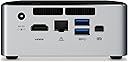
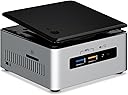
🚀 Small Size, Big Impact: Power Your Productivity & Play in 4K
The Intel BOXNUC6I5SYH is a sleek mini PC featuring a 6th Gen Intel Core i5-6260U processor with Turbo Boost, DDR4 RAM support, and Intel Iris Graphics 540 capable of stunning 4K UHD output. Designed for professionals and media enthusiasts, it offers versatile connectivity including 6 USB ports, HDMI, Bluetooth, and 802.11ac Wi-Fi. Its compact form factor delivers desktop-level performance with whisper-quiet operation, ideal for multitasking, streaming, and light gaming in any modern workspace.

| ASIN | B018Q0GN60 |
| Batteries | 1 Lithium Ion batteries required. |
| Best Sellers Rank | #187,698 in Computers & Accessories ( See Top 100 in Computers & Accessories ) #5,675 in Mini Computers |
| Brand | Intel |
| Card Description | Integrated |
| Chipset Brand | Intel |
| Computer Memory Type | DDR4 SDRAM |
| Customer Reviews | 3.9 3.9 out of 5 stars (269) |
| Date First Available | November 24, 2015 |
| Flash Memory Size | 32 |
| Graphics Coprocessor | Intel Integrated Graphics |
| Hard Drive | SSD |
| Hard Drive Interface | SATA 3 GB/s |
| Item Dimensions LxWxH | 5.5 x 5 x 5 inches |
| Item Weight | 1.25 pounds |
| Item model number | BOXNUC6I5SYH |
| Max Screen Resolution | 3840 x 2160 pixels |
| Memory Speed | 2133 MHz |
| Number of Processors | 2 |
| Operating System | Windows 10, 8.1 |
| Processor | 1.8 GHz core_i5_6260u |
| Processor Brand | Intel |
| Product Dimensions | 5.5 x 5 x 5 inches |
| Screen Resolution | 3840 x 2160 |
| Voltage | 1.2 Volts |
| Wireless Type | 802.11ac |
R**Y
Great, silent, fast Linux desktop - just love it
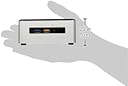
This is a truly great product. A totally silent, very fast and very small PC. It is about the length of the palm of your hand. Very easy to carry around, or on the road. Takes almost no space on the desktop. Hardware installation was a breeze following the illustrated instructions: - Open the case (4 Phillips screws one on each pedestal) - Slide the memory modules in (2 x 8GB DDR4 SDRAM modules from Kingston, ~$115 ordered separately) and lock into place - Attach the internal SSD mini-board (Samsung EVO-850, 500GB, $167, ordered separately): one small Phillips screw to secure into place. - Connect keyboard/mouse (via USB) - Connect display (via mini-DP port. If your monitor has a DVI or HDMI port only, you may need to separately order an adapter from what you have to mini-DP, these are typically very cheap <$10) - Connect CAT5 ethernet cable - Connect power (unit comes with a small power supply, with a nice velcro to wrap excess cable length) - Plug in Kubuntu Linux 16.04.01 USB drive (prepared from downloaded ISO image ahead of time) into another USB port - Turn on by pressing the round button on the top corner. A little blue LED light appears. Boots from the USB in a few seconds into the Kubuntu install screen. Offers to encrypt the disk from the get go (optional). From there installation of Kubuntu Linux on the SSD was totally smooth and uneventful. Take installation USB out and reboot. Easiest Linux installation I've ever had. I didn't need to update the BIOS. It worked straight out of the box.
T**.
works great other than the lame SD card reader
I bought this unit with a pair of 8GB Kingston hyper X DDR4 2133MHz memory sticks mainly as a htpc. Shipping is quick as promised. Things arrive well-packed. Thank you Amazon. The first two things I do when I receive this unit are an immediate upgrade of stock bios to the newest 044 and then clean install of 64bit windows 8 pro. Some thoughts as listed as follows after 36-hrs use. 1.Theoretically this nuc6i5syh is way better than my nuc5i5ryh in performance. But in fact, you won't notice the difference between them most of time in normal use. They both work great. 2.Fan noise is barely noticeable at default speed when working or idling unless you are running stress test on it. 3.Can play almost all media files including 2160p@30fps I throw at it with no hiccup. But don't expect too much more than that especially when dealing with 2160p @60p files encoded using HEVC L5.1 with MPC-HC player via HDMI, it stutters at first and eventually causes 100% CPU usage. 4.the main downside about this unit is, it has trouble reading my 128GB kingston SDXC card formatted in NTFS. Every time when popping in the card into the card slot, my x64 windows 8.1 pro starts freezing. The mouse becomes very sluggish or even unresponsive. At the same time, system has a ridiculously 60% cpu usage from 5% for no reason. and then resumes back to normal after 3-5 minutes but end up failing to access all the files on the sd card. I do a google search and find other guys have the same problem on either 64bit windows 7 or Ubuntu. I haven't tried windows 10 yet. No ideas why. But I highly doubt the issue is OS independent and is just related to the drivers or hardware. 5.Thanks for intel continuous efforts, I haven't yet encountered WHEA error so far, looks like the newest bios has fixed the flaw which used to bother a lot of ppl in the past few months. But still need more time to prove its stability and durability. Overall, I'm quite happy with this purchase. The little device does a great job and meets all my expectations. I think that it should have deserved 5 stars if the card reader works properly. Hopefully Intel rolls out new driver or firmware to fix this problem ASAP.
Y**G
Great barebones DIY Linux Mini PC kit
Instructions follow to complete your kit. You'll need to install your own memory and storage modules. Visit “Technical Product Specifications for Intel® NUC Products” at [...] for guidance on particular kit boards. Read “System Memory” and “Memory Configurations” sections to identify the recommended memory you need to get in duplicate. Two memory modules of the same size maximizes throughput, i.e. “Dual channel (Interleaved) mode.” Do not exceed the maximum memory capacity. For storage read “Add-in Card Connectors” section to identify maximum bandwidth of SATA drives and M.2 SSD PCIe drives. Here is the relevant info about boards for two kit types: Intel® NUC Board NUC6i5SYB and… NUC6i3SYB Technical Product Specification The board supports M.2 2242 and 2280 (key type M) modules. • Supports M.2 SSD SATA drives ― Maximum bandwidth is approximately 540 MB/s • Supports M.2 SSD PCIe drives (PCIe x1, x2, and x4) ― Using PCIe x4 M.2 SSD maximum bandwidth is approximately 1600 MB/s †NOTE: Stated elsewhere, “The board supports AHCI storage mode.” However, nowhere does it state that it supports NVMe mode. Many (admittedly old) troubleshooting threads online complain about trying to get NVMe modules to work with Intel NUC kits. For this kit AHCI is a safe bet and I got mine to work with considerable frustration, which you can avoid by disabling Legacy mode in BIOS (details below.) Intel® NUC Kit NUC6i7KYK Technical Product Specification The kit supports M.2 2242 and 2280 (key type M) modules. • Supports M.2 SSD SATA-III drives ― Maximum bandwidth is approximately 540 MB/s • Supports M.2 SSD Gen 3 PCIe AHCI, NVMe drives (PCIe x1, x2, and x4) ― Using PCIe x4 M.2 SSD maximum bandwidth is approximately 4000 MB/s ‡NOTE: The NUC6i7KYK spec specifically states that it supports NVMe drives. For my Intel NUC Kit NUC6i5SYH BOXNUC6I5SYH Silver/Black PCIe x4 M.2 SSD has about 3 times the bandwidth of M.2 SSD SATA drives, which squander valuable bandwidth, so I recommend PCIe modules. I installed Samsung SM951 512GB AHCI MZHPV512HDGL-00000 M.2 80mm PCIe 3.0 x4 SSD - OEM . (Benchmark screenshots below.) The Intel NUC Kit NUC6i7KYK Mini PC BOXNUC6I7KYK1 supports faster NVMe versions like Samsung 950 PRO Series - 512GB PCIe NVMe - M.2 Internal SSD (MZ-V5P512BW) , which you might consider. If you need a new monitor, then read “Mini DisplayPort” and “Multiple DisplayPort and HDMI Configurations” sections to identify the maximum resolution. I bought gofanco® Gold Plated 3 Feet Mini DisplayPort to DVI Adapter Cable - Black Thunderbolt Compatible MALE to MALE for Apple MacBook, MacBook Air, MacBook Pro, Mac Mini, Microsoft Surface Pro / Pro 2 / Pro 3 & Surface 3, Google Chromebook Pixel, and Laptops with Mini DisplayPort Ports to Connect to DVI Displays to connect my old Gateway 1280x1024 anti-glare monitor. You could use a TV as a monitor with built in speakers via HDMI (which supports audio), but anti-glare TV screens are not common, so beware. I successfully connected an old set of desktop PC stereo speakers with a stereo audio jack into the Intel NUC combo jack. • Front Panel Audio Jack Support: ― Speakers only (Stereo) ― Headphones only (Stereo) ― Microphone only (mono) ― Combo Headphone (Stereo)/Microphone (mono) For keyboard & mouse I chose Logitech Wireless Keyboard K360 - Glossy Black & Logitech M570 Wireless Trackball , but each device came with its own Unifying Receiver. During initial setup I plugged both Unifying Receivers into separate USB ports. After setup, I installed the Solaar applet through the Software Manager to pair the two devices to a single Unifying Receiver and was able to remove one and store it inside the device battery compartment. Solaar is a panel applet that pairs Logitech devices and displays battery status and warnings in Notifications (screenshots below). I personally prefer trackballs to mice. I feel no need to mimic cursor movement with arm movement, or pick up a mouse and move it when it runs out of real estate on a desktop. Rolling the trackball with your thumb is all it takes and the device remains stationary on your desktop. A troubleshooting thread complained about Linux USB 3.0 port drivers dropping keyboard input, which I have not experienced. Intel NUC kits have internal headers for USB 2.0 ports. I bought 2 StarTech USB A to USB Motherboard 4-Pin Header F/F 2.0 Cable, 6" (USBMBADAPT) just in case, but never needed them. The final device you'll need (other than an Ethernet cable) is a USB flash drive with a capacity of at least 4GB. First, update Intel NUC BIOS to latest version. On another computer, download latest Intel NUC BIOS. Go to “Downloads for Intel® NUC Kits” at [...] and make three selections: NUC kit name, “BIOS”, and “OS Independent.” The latest BIOS download should appear at the top of the list. Download it and copy the BIOS update file to the USB flash drive. Follow “F7 BIOS Update Instructions for Intel® NUC” at [...]. In my case I updated from version 28 (shipped) to 42 (latest). Reboot. Turn off unit and remove USB flash drive. On another computer download the latest Linux Mint distribution (.iso file) and use it to make an EFI bootable USB drive. YouTube videos and blogs instruct how. Afterward, if you boot your Intel NUC directly from your USB drive with no changes and install Linux Mint then it will fail to boot from your PCIe SSD. Therefore, to avoid the frustration that many DIYers have experienced edit the Intel NUC BIOS before installing Linux Mint. To edit BIOS settings, press F2 on first startup and disable “Legacy” mode, enable “Boot USB Devices First”, “AHCI” should be selected not “RAID” (“NVMe” might be an option on NUC6i7KYK, I don't know) , and Intel recommends setting “Cooling” to “Cool” (screenshots below.) Press F10 to save and exit. You can now boot from the USB drive and double-click the “Install Linux Mint” icon on the desktop to run the installer (screenshots below.) As shown in the screen shot of the desktop there is no Internet connection. Therefore, connect your Ethernet cable between your Intel NUC and your Internet modem, and follow the installation instructions, including “Erase disk and install Linux Mint/Warning: This will delete any files on this disk.”, which sounds ominous. Remove the USB drive. Reboot. The version of Linux Mint that I installed (17.3) did not have the proper Intel wireless driver. If you experience this problem, keep the Ethernet cable attached. Go to “[SOLVED]17.2 Mint Mate does not recognize Intel AC-3165 WiFi” at [...] and then copy (Control-C) and paste (Shift-Control-V) the commands of the solution one line at a time into a Linux terminal application. Some lines may prompt you for your password, which will not echo or otherwise give any feedback as you enter it. Have faith and persevere. This series of commands will download and compile a large number of plug-and-play wifi drivers, which will take a long time, but your effort will be rewarded. In time new updates to Linux Mint will make this step obsolete, but for now be forewarned. On next reboot, I edited BIOS to disable “Boot USB Devices First” while knowing full well how to enable it at some future date, if needed. If you use Netflix, then you will need to use the Firefox browser to go directly to the Google Chrome website and download and install Google Chrome, which is the only Linux compatible browser that will stream Netflix videos. I connect my Intel NUC to a large panel TV via HDMI cable to stream Internet videos. An HDMI cable is another purchase you might consider, if you own a TV with an HDMI input port. Just to be safe, I installed the free version of Sophos Antivirus for Linux. During installation, watch for the question that distinguishes between free or paid support. Default is paid support. 10 big surprises in a small package: 1. The AC power adapter is about the size of a deck of playing cards, slightly thicker but smaller in the other two dimensions. I was expecting a laptop brick. 2. Intel NUC footprint is smaller than a CD case, the diameter of a CD is wider than either side of the rectangular footprint. Chip miniaturization has made it possible to downsize into this small package power, speed & capacity far exceeding that of yesteryear's room size mainframes. 3. I never hear any fan noise. According to the specs it has a fan. 4. Boot time is roughly 10 second for my Linux Mint Intel i5 NUC with Samsung SM951 AHCI SSD. Boot times for Windows laptops with HDD storage are mind numbingly slow. 5. HDD technology should become extinct soon, even though laptop manufacturers still market it. This DIY Intel NUC kit gives us freedom to avoid HDD technology. Just say no to HDD. 6. I use the pre-installed Banshee application to stream internet radio (Classical KUSC FM & KING FM.) Close makes Banshee disappear from the desktop, but it keeps playing with song & composer titles appearing in Notifications. Close just hides the GUI. Quit completely ends it. 7. The Cinnamon desktop has crashed twice so far, displaying the option to restart which it does upon request. However, I am exploring new applets and applications right now to find the optimum working environment that suits me. Some applications that I install do not work as advertised or at all, so I uninstall them. Sometimes this creates a ripple effect and applets stop working that previously worked. So I remove them from the panel and re-add them, which seems an effective remedy for now. 8. I am a long time Ubuntu Linux user. Ubuntu gave new life to my old laptop that was burdened and crippled by Windows updates and anti-virus scans. I also dual booted Ubuntu and Windows on my old Gateway desktop, from which I scavenged the monitor for this system. Linux Mint now has video and audio editing applications to free any foreseeable need for Windows. We no longer need to pay the Microsoft tax to run Linux on an awesome Mini PC like this Intel NUC. 9. According to Friedrich Nietzsche, “That which does not kill us makes us stronger.” My experience troubleshooting the DIY nuances of Linux Mint & this Intel NUC kit have been frustrating at times but ultimately rewarding. I expect more great surprises from this small package. 10. I now have all the tools I need to produce Internet videos without having to pay a cent for the software. *** UPDATE *** Linux Mint 18 resolves missing wifi driver issue *** 9/22/2016 I made a bootable USB drive of the latest Linux Mint 18 Cinnamon Long Term Release. It boots and has wifi access without any trouble. I upgraded to Linux Mint 18 and am currently running kernal 4.4.0-38. The Unigine Heaven Benchmark 4.0, a video game simulation benchmark, now runs over 22% faster on the same hardware. In Frames Per Second (FPS) Linux Mint 17.3 rated 12.1 FPS, whereas Linux Mint 18 rates 14.8 FPS. I installed the Intel CPU driver noted in the comment and achieved 15.0 FPS (screenshots below.) I also updated my BIOS to the latest version 51 released 8/10/2016. For my purposes this is fine, but if you are looking for a gaming platform with a minimum of 30 fps, then look elsewhere. To follow the “verify your ISO” instructions on the Linux Mint downloads page you need to download the sha256sum.txt and sha256sum.txt.gpg files from a mirror site. The link to the .iso file is provided. Copy the mirror site link and paste it into your browser address bar, then delete the file name to open the directory where all the files are located. Save those two sha256sum files into the same directory as the .iso file on your computer (probably Downloads.) Then follow the directions. Be sure to look at the release notes, which contain a link to a tutorial that explains how to install a windows version of FireFox that you can use to view DRM enabled videos, like those located on nbcolympics.com. I am really impressed with this Intel NUC running Linux Mint. There is no fan noise, and I doubt the fan even runs it stays cool enough. I installed psensor from the Software Manager. The Psensor Temperature Monitor displays and graphs the temperature of the Intel CPU and Samsung SSD (screenshot below.) High temperatures were when it was updating to Linux Mint 18. Normal CPU temperature range is 85-95°F.
P**.
HINWEIS: Man braucht für die Installation noch einen zweiten Rechner mit Internetzugang und einen USB-Stick um Treiber herunterzuladen! Mehr dazu unten.... Nachdem ich im Büro schon meherere Intel NUCs aus vorherigen Generationen habe, kam als Ersatz für einen alten PC nur wieder ein NUC in Frage. Klein, leise, schnell und stromsparend. Wird bei uns für CAD mit 4k-Monitor+Full-HD-Monitor eingesetzt und ist dafür völlig ausreichend. Ich habe einen 32GB-Kit von Crucial als Arbeitsspeicher mitbestellt und eine Transcend MTS400 M.2 SSd mit 256GB. Als OS habe ich bei Amazon Windows 10 Pro auf USB bestellt. Installationsablauf: - Rechner zusammengebaut - Monitor Full-HD über HDMI angeschlossen - alte USB-Tastatur und USB-Maus angeschlossen - USB-Stick mit Windows 10-Setup eingesteckt - Eingeschaltet und mit F2 erstmal ins Bios Ich war schon erstaunt dass ich überhaupt ins Bios kam, hatte aufgrund einiger Rezensionen von Anfang 2016 gelesen dass viele USB2-Geräte während des Bootens an den USB3-Ports nicht gehen und mich hier schon mental auf Schwierigkeiten eingestellt aber vermutlich ist das BIOS inzwischen dahingehend aktualisiert worden. Es lief also, im Boot-Manager "Boot USB first" angeklickt und wieder neu gestartet. Das Windows 10 Setup läuft durch und man hat den normalen Desktop. HIER KOMMT DER ZWEITE RECHNER INS SPIEL: Es erscheinen einige Hinweise zu fehlenden Treibern und dass Windows diese herunterlädt. Geht aber nicht, da für den Netzwerkadapter des NUC standardmäßig kein Treiber bei Windows 10 dabei ist! Also im Internet auf einem anderen Rechner Treiber für NUC6i5 gesucht und per USB-Stick auf den NUC gebracht. Nach der Installation geht das Netzwerk und Windows zieht sich die restlichen Treiber über die Update-Funktion selbst. Bis auf diesen kleinen Wermutstropfen lief es aber recht flott (rund 2 h mit Hardware zusammenbauen) und ich bin zufrieden!
J**M
Une telle puissance dans une toute petite boite qui ne fait pas de bruit et qui sait se faire oublier. Extrêmement bien pensé. J'ai ajouté le max de mémoire, avec in gros SSD M2 et un gros SSD Sata. Ça va aussi vite que mon serveur, vraiment surprenant.
Á**Z
Como homelab es perfecto. Pequeño, silencioso, bajo consumo y tremendamente potente. Pensando ya en adquirir un segundo para montar un cluster.
A**R
I have been self-building PC's for years and this, my latest, replaced an old AMD Phenom II x4 desktop (is it really six years?) - so it's just a little more-advanced. ;-) It is VERY easy to configure & put together; install memory, install M2 and/or hard drive then plug everything in. Put your OS memory stick in a port, press power on & set bios and you're off. Updated drivers are on the Intel website; I strongly suggest updating the BIOS to the latest version immediately after installing your OS if not before. Now that I have had a few days with it up & running, I have to say I am impressed. This now has Windows 10 installed and fully updated, & running with absolutely zero problems. Boot times are fast, just sub-30 seconds from "cold" power-up (despite the OS, Avast & a few other "bits" slowing things down) and it seems to be a nicely-built bit of kit - apart (perhaps) from the "dust-magnet" glossy black lid. It has all the ports I need and connects to both my monitor AND my TV/home cinema without a glitch. One note: get a DECENT DisplayPort cable if you intend using that - the "cheapie" I bought (not here) was no good; I suggest you read up first. (There is only one miniDP to DP cable which is recommended according to Displayport.) To sum up: I now have a modern computer which is tiny - easily small-enough to take with me (if I want to) and yet is plenty powerful-enough for everyday tasks. It uses MUCH less power than my old one (bonus) and yet it is noticeably both speedier and more-responsive in use. In my humble opinion, it is worth every penny.
T**O
Yo lo he montado con un SSD M.2 de 256 GB (un Transcend TS256GMTS800 por menos de 100 euros) y una sola SIMM de 16GB (Crucial CT16G4SFD8213 por 65 Euros). En total (contando los 429 euros del NUC) por menos de 600 euros sale un ordenador muy potente y ligero, con la posibilidad de añadirle otra SIMM de 16GB y un SSD en un futuro. Si tienes un pendrive instalador de Windows 10 y todos los drivers bajados de Intel, se monta en menos de media hora. Se abre el NUC, se montan la memoria y el disco (realmente sencillo), se cierra el NUC, se conecta al monitor, el teclado y el ratón, se conecta la alimentación, se arranca desde el pendrive (me ha encantado la UEFI de Intel) y se instala del tirón. Muy pequeño (pero que muy pequeño). Completamente silencioso. Potente. Se puede utilizar como HTPC (conectado a la televisión para ocio y cine en casa), pero para mí es una barbaridad montar un i5 para eso (para ese fin me decantaría por un i3 o incluso por un Celeron o un Pentium N3700). Para mi este es un ordenador de sobremesa para ofimática y ocio (excepto para juegos que requieran mucha potencia en la tarjeta gráfica), que te debe durar muchísimos años.
Trustpilot
1 week ago
1 month ago