Buy anything from 5,000+ international stores. One checkout price. No surprise fees. Join 2M+ shoppers on Desertcart.
Desertcart purchases this item on your behalf and handles shipping, customs, and support to Vietnam.
๐ Take control of your outdoor spaceโsmart, sleek, and always connected!
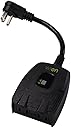
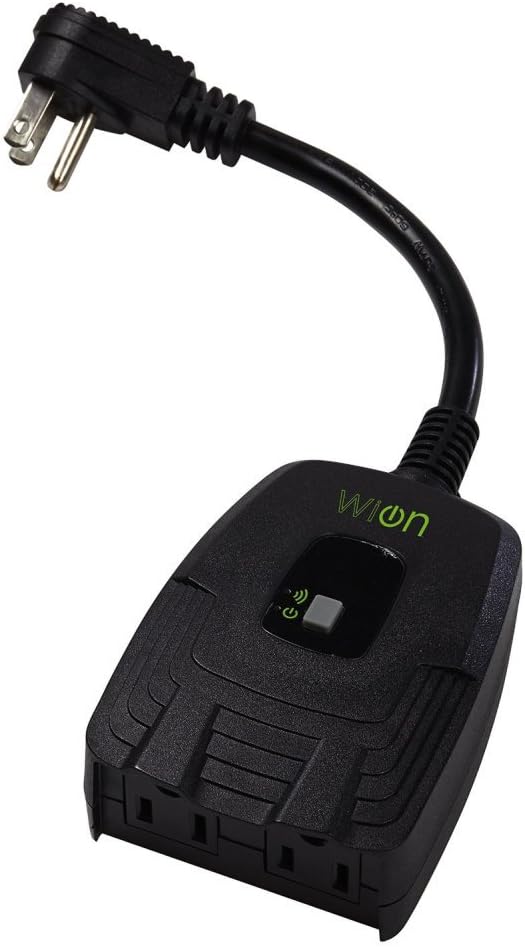
The WiOn 50049 Outdoor Wi-Fi Wireless Plug-In Switch offers dual grounded outlets with weather-resistant housing, enabling smartphone and tablet automation for up to 12 devices. It supports 12 customizable ON/OFF schedules including vacation and sunrise/sunset modes, all controlled via a dedicated app over 2.4 GHz Wi-Fi. Designed for outdoor use, it combines energy-saving smart scheduling with robust connectivity, making it ideal for managing patio lighting, fountains, and other outdoor electronics remotely.


| ASIN | B00ZYLQZEK |
| Actuator Type | Push Button |
| Best Sellers Rank | #228,159 in Tools & Home Improvement ( See Top 100 in Tools & Home Improvement ) #332 in Electrical Outlet Switches |
| Brand Name | Woods |
| Color | Black |
| Connectivity Protocol | Wi-Fi |
| Connector Type | Plug In |
| Contact Material | Plastic |
| Contact Type | Normally Closed |
| Control Method | App |
| Controller Type | Android, iOS, vera |
| Current Rating | 15 Amps |
| Customer Reviews | 3.8 3.8 out of 5 stars (1,068) |
| Global Trade Identification Number | 00078693500497 |
| Included Components | timer outlet |
| International Protection Rating | IP00 |
| Item Dimensions | 3 x 1.6 x 5 inches |
| Item Type Name | Outdoor Wi-Fi Wireless Plug-In Switch, Smartphone And Tablet Automation For Up To 12 Devices, 2 Grounded Outlets, Weather Resistant, Energy Saving, Wifi Controlled Switch |
| Item Weight | 0.53 Pounds |
| Lower Temperature Rating | 32 Degrees Fahrenheit |
| Manufacturer | Woods |
| Material Type | Acrylonitrile Butadiene Styrene |
| Model | 50049 |
| Mounting Type | Wall Mount |
| Number of Items | 1 |
| Number of Positions | 1 |
| Operating Voltage | 125 Volts |
| Operation Mode | ON-OFF-ON |
| Specification Met | UL |
| Switch Type | Push Button |
| UPC | 078693500497 |
| Unit Count | 1.0 Count |
| Upper Temperature Rating | 100 Degrees Fahrenheit |
| Warranty Description | Limited 1-Year Warranty |
| Wattage | 1000 |
B**C
Works Well; The App For This Is Now Called "ECO Plugs"
I've owned this for 8 years now; using it to control a 1500 watt space heater that I put in my first generation Honda Insight hybrid to keep the high voltage battery warm when outdoor temperatures go below 10ยฐ f. I also have indoor models as well. Apart from being a bit finicky when attempting to set it up and bind it to my Wi-Fi router, it has been trouble free. On first setup for subsequent reprogramming's, It usually takes a couple of tries before the switch's Wi-Fi signal shows up on my phone or tablets Wi-Fi connection list. The outlet WiFi name takes the form of ECO-xxxxxxxx. You'll need to connect to it before you start up the app. It is also very helpful to unplug any other WiOn switches that you may have before attempting to perform a setup procedure on this or any other new WiOn outlet. When performing said setup, take note of the MAC address on the little sticker attached to the outlet. Remember the last four digits, hold down the switch and plug in the outlet, wait 5 seconds for the light to stop blinking, then release the switch and look for those digits on your phone or tablets Wi-Fi signal list in the form listed above. Now connect to it. Next, start the WiOn or ECO Plugs app. Either works and they are identical in functionality, the only difference is the color scheme used. ECO Plugs is the most current and only one available in the Play store; I have a mix of both on various devices. After starting the app, you'll be giving a screen to input your ZIP code, outlet name, Wi-Fi network name that you want the outlet to be bound to, and its password. Once the app finishes configuring the outlet, it will disconnect from the outlet's Wi-Fi and connect to your router's. At this point you should be at the main app screen with a button and your new outlet's name visible in the upper left corner. Click on it and listen to see if the relay inside your outlet clicks. If it does, you're good to go. If you have any other new WiOn outlets, unplug the one you just set up and repeat the above steps until they are all programmed. Some things to note: if you update the app or clear its cache or storage, you may have to repeat all of the above for all of your switches. So be careful there. If you change your router's network name or password, or purchase a new router and give it a new network name and or password, you will also have to repeat all of the above. To select an outlet in the app, you need to rotate the list in the upper left like a dial, until the desired outlets name is at the lower left. Then you can go into "Setting", which will allow you to "Rename" the outlet, activate daylight savings time, "Remove it from the cloud", as well as "Connect to Amazon Alexa or Google Assistant". I have no idea if it can integrate with Google Gemini, since that seems to be the direction Google is heading. I don't use either one of the assistants, so I'm not much help to you there. You can also set a programmable timer as well, with multiple on and off times, if you so desire. Another thing to note is that these operate on 2.4 GHz only, which gives them pretty good range, but also means they will fail to connect to a newer router if you have consolidated your 2.4 GHz and 5 GHz frequencies onto one network. Also, the newest Wi-Fi encryption that they can use is WPA2. So if you have a newer router, you're most likely using straight WPA 3 or WPA2/WPA3 SAE (Simultaneous Authentication of Equals) and these will fail to connect, complaining that you're using the wrong password. On a newer router you will need to set up a 2.4 GHz Guest or IOT - internet of things network, and specify WPA2 Wi-Fi encryption only in order to get them to connect. And finally, there is a limit of 12 outlets that can be controlled from the app
S**C
Installation is not straightforward at all.
Let's just say I have wasted an hour trying to get it to work. Customer service helpfully sent me this email information which should have been included in the original instructions. Since I don't know how to disable my 5 GHZ band on my router (installed by my cable company) and am tired of working on this, I will return it. USES BAND WIDTH: 2.4GHz Band width if 5.0 or higher will not connect. Check your router settings, try resetting your router. If your router has dual band width then you will need to disable the higher. Here are some troubleshooting suggestions for you to consider. For initial set-up be within. 3 ft. of your router. Also, you need to look in your phone settings in data usage โ allow permission for WiOn app to use data. With the WiOn device hard-wired or plugged in, the process to add a WiOn device is: 1. Go into your phone's SETTINGS 2. Then WI-FI settings 3. Look for a new network named ECO### and connect to it NOTE: IF IT SAYS CANNOT FIND INTERNET โ JUST MOVE ON 4. NEXT STEP: (this is when you open WiOn app) (Note: if it does not find the router then hit the + button on your WiOn app to add your router) Follow the on-screen directions to add your country, zip code/area code, name of router(this is name of your network) and Wi-Fi password, your phone will then attach that WiOn device to your local network, the new device will now be listed on the main screen of the app and ready to use. If it does not connect: Delete the WiOn app and reinstall it. NOTE: IPhone users must go to app store to install new app not the app that is stored on the Cloud. Then once it is reinstalled go into your iphone settings (not the WiOn app settings), go to WiFi and see if a new network called โECOโ followed by some numbers appears. If it does, connect to that network and follow the onscreen instructions, which should ultimately lead you into the WiOn app and your device will appear.
P**1
* Easy to connect to wi-fi * Has a variety of ...
This review is for the Wi-FI version of the outlet, NOT the standard "remote control" (non-Wi-Fi) version. An outstanding product. Unboxed, plugged in, connected to wi-fi, and was using the app on my phone in about ten minutes. Pros: * Easy to connect to wi-fi * Has a variety of settings that are easily accessed through the app on my iPhone: Programmable Timer, Countdown Timer, Astronomic Timer, Vacation Random, and Security Random. The Programmable Timer (a multi-day timer) is easy to set and adjust. * You can give a custom name to the device(s) that you are controlling. I called mine "icicle lights". * Has two outlets. It's worth noting that the two outlets can not be controlled independently. Whatever settings you use for one outlet have to be used for the second outlet. * Has a simple on/off "switch" on the app so I can easily override the programmed settings. * A good value for the cost. Cons: * Haven't found any so far. Setup: * MY WiOn 50049 Outdoor Wi-Fi Outlet (2 outlets), is connected to an Airport Extreme router. The WiOn app is installed on my iPhone 6s. Works very nicely. Used to connect my icicle lights to my wi-fi network. No more having to go up and down the stairs to turn them on and off or fiddling with a clunky digital timer or reprogramming the timer when the power goes out. One thing to note: When the app "searches for the router", it can take a few minutes for it to find it, depending on the speed of your mobile device.
Trustpilot
1 month ago
1 month ago