🌍 Stay connected everywhere — your pocket-sized Wi-Fi wizard!
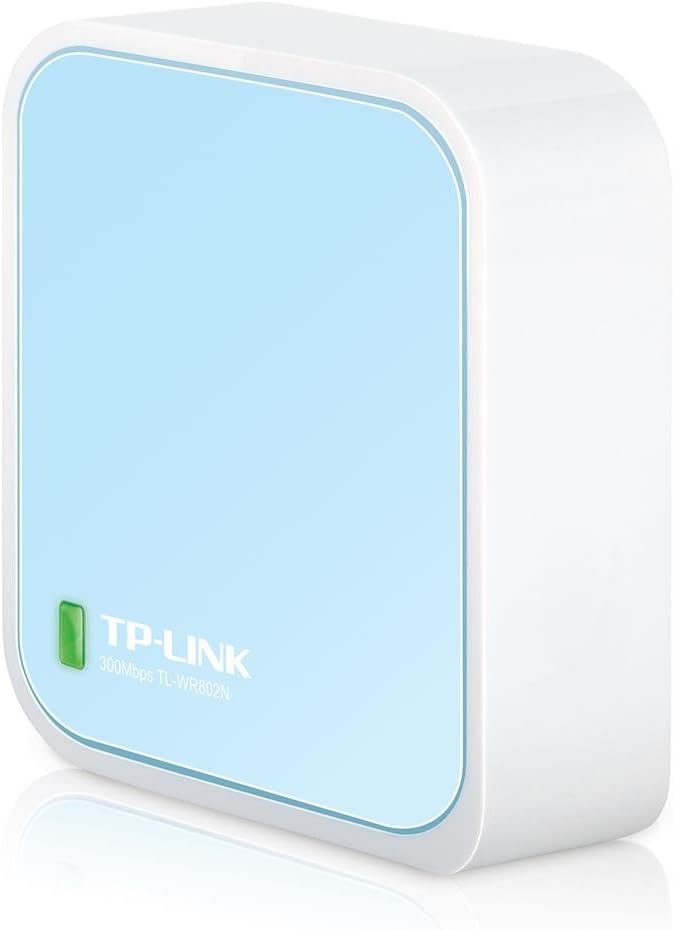
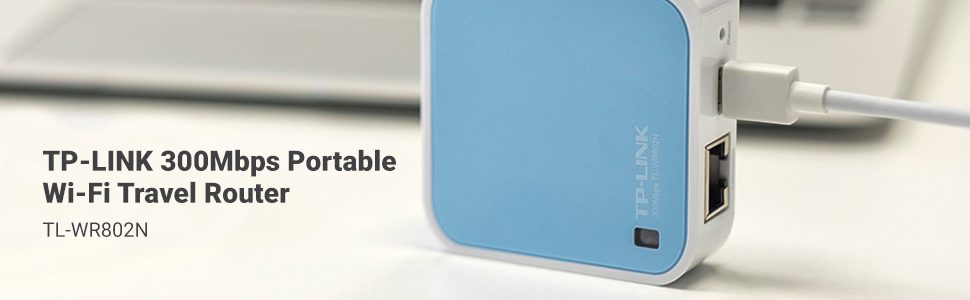
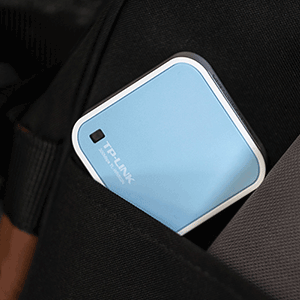
The TP-Link N300 Wireless Portable Nano Travel Router (TL-WR802N) is a compact, ultra-portable device delivering up to 300 Mbps on the 2.4 GHz band. Designed for professionals and travelers, it supports five operation modes—Router, Access Point, Client, Repeater, and WISP—enabling versatile network setups from secure hotspots to range extension. Powered via USB or wall adapter, it offers quick setup, robust security with pre-encryption, and broad OS compatibility, making it the ultimate travel companion for seamless, secure internet access anywhere.


| ASIN | B00TQEX8BO |
| Antenna Location | Home |
| Antenna Type | Fixed |
| Best Sellers Rank | #1,621 in Computers & Accessories ( See Top 100 in Computers & Accessories ) #76 in Computer Routers |
| Brand | TP-Link |
| Built-In Media | Power Adapter, Quick Installation, Guide Resource CD, RJ45 Ethernet Cable, USB Cable, Wi-Fi Router TL-WR802N |
| Color | Basic |
| Compatible Devices | Personal Computer |
| Connectivity Technology | wireless |
| Control Method | App |
| Coverage | 2 Bedroom Houses |
| Customer Reviews | 4.0 out of 5 stars 10,376 Reviews |
| Data Transfer Rate | 300 Megabits Per Second |
| Frequency | 2.4 GHz |
| Frequency Band Class | Single-Band |
| Is Modem Compatible | No |
| Item Dimensions L x W x H | 2.2"L x 2.2"W x 0.7"H |
| Item Weight | 1.06 Ounces |
| LAN Port Bandwidth | 10/100 Mbps |
| Manufacturer | TP-LINK USA |
| Maximum Upstream Data Transfer Rate | 300 Megabits Per Second |
| Model Name | TL-WR802N |
| Model Number | TL-WR802N |
| Number of Antennas | 2 |
| Number of Ports | 1 |
| Operating System | Microsoft Windows 98SE, NT, 2000, XP, Vista or Windows 8.1/8/7, MACOS, NetWare, UNIX or Linux |
| Other Special Features of the Product | Access Point Mode |
| RAM Memory Installed | 32 MB |
| Security Protocol | WEP, WPA, WPA-PSK, WPA2-PSK |
| Special Feature | Access Point Mode |
| UPC | 840460604772 |
| Unit Count | 1.0 Count |
| Voltage | 100240 Volts |
| Warranty Description | 2 year manufacturer |
| Wireless Communication Standard | 802.11n |
| Wireless Compability | 802.11n |
S**I
Got this for my Xbox One S. Didn't expect it to be this good!
I got the TP-Link N300 Travel Router (without the USB port) specifically for my Xbox One S. I didn't expect it to be this good! My university uses an indirect wi-fi login system (we connect to the open university network, which brings up an internet page asking us to login with our university ID and password to authenticate — similar in system to most hotels and airports), which the Xbox can't handle. So I decided to create a small internal network in my room that has its own SSID and password. I went with a mini router rather than just a range extender because this mini router has greater functionality for around the same price as most extenders. Size: As you can see in my pictures, the length/width is a little more than that of two quarters side-by-side, and the thickness of 3/4ths a quarter. I was surprised by how small it was when I opened it. Accessories: It comes with an ethernet cable, USB charger, wall adapter (though this is a bit clunky for modern standards), travel pouch, Wi-fi Info Card, and the standard instructions. Setup: Quick and easy, though you'll need to have a computer (I'm not sure if it works on a smartphone/tablet) to access the setup page. It took me about five minutes to set mine up in Access Point Mode. Basically, you plug in the router for your preferred mode as per the image/instructions. You then connect to your router from your computer using the password on the Wi-Fi Info Card and go to tplinkwifi(dot)net to do a quick setup. Here you can choose what mode you want to use the router in, change your SSID, password, etc. Then reboot to reconfigure the router. Modes: There are five modes -- two for travel and three for at home use. I went with the Access Point (AP) Mode for my uses, but I probably could have just gone ahead with the default Wireless Router mode. The ethernet port in my room was too far away from my Xbox to use Client mode. Regardless, it’s working great. I’ve attempted to give explanations for the different modes below, but I’m not particularly knowledgeable in this so please correct me if there are any inaccuracies. For Travel: 1. Wireless Router (default): Basically, it turns a wired internet connection wireless. 2. Hotspot Router: I would best describe this as taking an open (and unsecured) wi-fi connection and making it password protected (personal hotspot). The router takes the unsecured wi-fi connection and creates a secured wi-fi/wired connection, and you can have one device connected directly to the router and have the rest of your devices using your protected wi-fi at the same time. Useful for connecting to the internet in public places like cafes. I believe it's also great for hotel rooms where only one device can use the internet per room. Connect this and all your devices can use the internet. For Home: 3. Range Extender: Similar in nature to the Hotspot Router Mode -- it goes wi-fi to wi-fi, except this mode uses your home's network and maintains the same password as your home's AP. It's to extend your home's wi-fi to reach any wi-fi dead spots in your house (like the attic or basement, or that weird corner of the room where you like to huddle and binge watch Netflix but just happens to be the same place where wi-fi connectivity is super sketch and the video never loads). You can use the router for both wired and wi-fi connections simultaneously. 4. Client: Sort of the opposite of the Wireless Router mode -- this takes a wi-fi network and makes it wired so that devices that don't have wi-fi capabilities can connect to the internet. It's great for smart TVs, game consoles, printers. 5. Access Point: Same as the Wireless Router mode, takes a wired network and makes it wi-fi. Speed: There wasn’t really any compromises made with the download speed. My university has incredibly fast wi-fi (though my dorm isn’t as fast as our libraries), so I’m glad that wasn’t sacrificed. The upload speeds weren't as consistent, but still not bad. You can see the speed test results in my pictures. Overall, I'm really liking this mini router. The size is perfect for travel (it's smaller than my Macbook Pro's MagSafe adapter…!), and the setup was straightforward. Definitely a recommended buy.
S**N
Review for TR-WR802N - Excellent Router, Must have for Travelers and IT Field Professionals on the go
I do a lot of new data center setups where there's no internet connections and was looking for something that would be able to bridge my phone's hotspot to ethernet only servers so they can access the internet. This does that and alot more. I can also use this in hotels to connect devices such Chromecast, and anything without web browser. The most useful feature is the WISP mode which basically connects to a wifi network as a client such as hotel wifi, and then broadcasts and shares that wifi as a "second SSID" with with your own name and password that you can then connect multiple devices to. For the techies, the devices you connect using this mode are NAT-ed , so the hotel side wifi will only see one client , your wifi hotspots mac and address. Overall this is a great device. Only wish the throughput was a bit better which is not bad but off my phone hotspot direct i am getting about 20MBPS down, through the router in WISP mode its about 8-12, which is not bad for a portable low power device. Otherwise great product. Also looked at the hootoo but didn't really need the USB sharing or really care for its GUI interface. This is packed with features and great for both techie and no techie users, price is right and is feature packed. Here's a breakdown of the modes and what they are useful for. * WISP/Hotspot Mode - Good for Connecting Chromecast or any devices without a Web browser to a Captive portal wifi network. This basically connects to One SSID as a client for instance Hotel Wifi, then Broadcasts a second SSID ( one that has your own custom name and password ), and routes it so that many users can connect. As long as one device connected behind this captive portal interface authenticates, all devices will be able to access the internet. Pretty Neat! * Router Mode - Works as a standard Router which most are familiar with. You connect the wired section to your DSL/CABLE/Fiber modem and allows many users to connect. * Access Point - Works similar to the above but without Router functionality. This basically allows you to connect wireless devices to a wired network, this requires a router already existing somwhere on the wired network in order to access the internet. * Range Extender - Acts as a wireless repeater to extend signal strength, nothing else. * Client - Also known as Wireless bridge mode. You connect this router to another SSID or wifi network, and it allows you give wireless access to devices that DO not have wireless capability already, only ethernet. This feature does not use the built in router and relies on a wifi network that already has a router established.
T**Y
Useless in every way
I purchased one of these with several use cases in mind. Unfortunately, the TP-Link N300 failed all of them. I spent some time testing the device at home and setting it up, and it appeared to be working fine. Once at the hotel, however, it turned out to be a pointless lump of plastic. Not only did I waste 3 hours of my time, but I ended up exactly where I started, minus the money I wasted. Use case 1: Connect to hotel wi-fi and use my Apple TV Status: Failed I plugged in the router, waited for it to finish booting up... and kept waiting. And waiting. Endless flashing light. Wi-fi network for the TP-Link was not being broadcast. Moved the router to different points of the room, no help. Checked hotel wi-fi signal strength, it's great. Unplugged, waited, plugged back in. Same result. After 5 attempts, I was finally able to connect to the TP-Link network by manually entering the SSID. I spent the next 45 minutes in the Tether app trying to connect the TP-Link to the hotel wi-fi network. Failed, failed, failed, app crashed, failed, failed, failed, partial success but the process hung up, failed, router reboot, failed, failed, moved router, failed, router reboot, failed, router hard reset, reconfigure, failed, failed, router hard reset, reconfigure, SUCCESS. Finally. But flashing light all the way. Who knows what that means at this point. The app says it means still booting and please wait but somehow I doubt it. Connected an iPhone and an iPad to the TP-Link and tested the network and it seemed to be working. Connected the Apple TV via ethernet, could not authenticate to TP-Link network. Tried again, could not authenticate. Tried 6 more times, finally authenticated, SUCCESS. Aaaand no internet connection. Checked the network again from my other devices and nope, it had stopped working at some point. I went through this whole process from the beginning another 3 times and never quite got as far again. Could not use my Apple TV. Fail. Use case 2: Connect to hotel wi-fi and use my Nintendo Switch Status: Failed The debacle of use case 1 at least taught me the correct sequence of witchcraft, router resets, and arm waving to get the TP-Link booted up and broadcasting a visible network. As before, it took dozens of attempts to get it to connect to the hotel wi-fi network (which I had quadruple checked as having a very strong signal where I was attempting to use the TP-Link). After much hair pulling, waiting, rebooting, and resetting, I got the TP-Link connected to the internet and ready to go. Tested the connection with two iOS devices and it seemed ok. Got out my Switch but it couldn't see the TP-Link network... so this problem again. Manually entering the network details didn't work. Started the process over from the beginning 3 more times and finally got the TP-Link connected to the internet AND the Switch connected to the TP-Link. Yay! Aaaaaand no internet connection again. Retrying, setting up port forwarding, none of it worked. Fail. Use case 3: Boost the hotel wi-fi network coverage within the room. Status: Failed You can see where this is going. The idea here was to put the TP-Link in a good coverage zone and have it fill in the shadow zones elsewhere in the room. Ha. Pointless exercise. Fail. After an extremely annoying 3 hours of my life, I threw the TP-Link in the trash, packed up the Apple TV I brought with me for absolutely zero purpose, opened a beer, and started watching terrible hotel television. In conclusion, I am happy to recommend this product to masochists, people who like blinking lights, and anyone interested in wasting time and money.
M**I
Great portable router
**Product Review: TP-Link TL-WR802N** I recently purchased the TP-Link TL-WR802N, and I must say it has exceeded my expectations in terms of performance and versatility. This compact wireless router is a game-changer for anyone in need of a reliable and portable networking solution. *Design and Build:* The TL-WR802N's sleek and compact design makes it incredibly easy to carry around, fitting snugly into my pocket. The build quality feels solid, and the device has a modern, unobtrusive look. Setting it up was a breeze, thanks to the intuitive design and clear instructions provided in the user manual. *Performance:* In terms of performance, this router delivers excellent speeds and a stable connection. Despite its small size, it handles multiple devices seamlessly, making it ideal for both home and on-the-go use. I was particularly impressed with its ability to maintain a strong signal even in areas with weak Wi-Fi coverage. *Versatility:* What sets the TL-WR802N apart is its versatility. It can function as a router, access point, client, or repeater, giving users a wide range of options to suit their specific needs. This flexibility makes it a valuable tool for various scenarios, from creating a temporary Wi-Fi hotspot to extending the range of an existing network. **Service Review: Jonaire** I also want to commend the excellent service provided by Jonaire. From the moment I placed my order to the post-purchase inquiries, their customer service team demonstrated professionalism and responsiveness. The staff was knowledgeable about the products and provided clear, concise answers to my queries. *Customer Support:* Jonaire's was a pleasure to deal with. He was prompt in addressing my concerns and provided helpful guidance when I needed assistance with the product setup. His commitment to customer satisfaction is evident, and it greatly enhanced my overall shopping experience. In conclusion, I highly recommend both the TP-Link TL-WR802N for its impressive performance and versatility, and Jonaire for his exceptional customer service. My experience with both the product and the retailer has been overwhelmingly positive.
Z**N
Great for college students and smart home people!
I got this for a very niche issue. My college on campus apartment made it very hard to connect smart home devices to the internet. This small and cheap device made me able to host my own 2.4GHz wifi that was bridged off of my schools wifi. Only had to register this product through my school instead of registering 10+ devices. This worked perfectly! only issues I've seen that is keeping this from 5 stars is it is quite slow, I wouldn't connect per se your phone or a gaming console to this and then the range of it didn't cover my whole apartment. Has about a 25-50 range. It was quite easy to setup and the instructions are extremely clear and helpful which is good! I highly recommend especially to those wanting a smart home!
N**B
Works awesome as an ethernet adapter
I am using this for a wifi to ethernet adapter. I have not tested the other features of this device. I had previously purchased a different manufacturers product to do this task, but it failed and tried to sabotage my network in the process... Someone from their corporate office wasn't too happy about my review of their product and they convinced Amazon to take it down. My setup is simple - I have a device (a PV inverter) that only has ethernet connectivity. I did not want to run CAT6 from one end of my house to the other with walls that were inaccessible, so I went with this solution. I installed a 120V to USB adapter within my inverter and connected this to it and it works well. It is actually operating well outside of the posted specs for temperature and still runs fine. This device is tiny and well built. I was surprised to get such a quality product for such a low price. I believe it states it needs 10w to run, but it really only draws about 3w. Almost any USB adapter will work for this. I couldn't find any that wouldn't run it (lowest I have is 0.75A @ 5V and it ran it). The only issues I have had was assigning it and the downstream device a static dhcp slot on the router. I think it was more on the inverter side than this device, but nonetheless I needed to set it for both for everything to work correctly when the network would get rebooted. I have not tested this outside this use, but I am very pleased with how well it works as a wifi to ethernet adapter.
A**Y
Nano signal
I travel for work. So I am in hotels often. I LOVE the ability to plug a gadget in, and point it to the access point, and have all my devices automatically connect up. This was necessary to satisfy the problem of Google chromecast, where it requires a phone to operate, and they must be on the same wifi network. (Most hotels isolate devices to keep guests secure from each other) I bought the small nano first. And I later purchased the larger version (TL-WR902AC). So I will provide the pros and cons of each here. Please also note that I am EXCLUSIVELY using this in hotels in wi-fi only (never plugged in the RJ-45 ethernet) as a wi-fi access point for all my tech, I've not used it for anything else. There are many other features and capabilities that are not accounted for here. Nano: + simple setup, great wizard. + SOOOOO tiny + Works great with Marriott/SPG hotels (and everywhere else I've tried it) - Struggles with multiple devices, the single band antenna seems to be a big restriction in speed and multiple devices. - Slow speeds Big brother (AC902 model) + Much cleaner and more stable connections - handles all my devices brilliantly. + Far more features (that I don't use) + Larger than the nano (picture for reference) but still so small that it's perfect for travel - Setup is not so streamlined. Additional hardware toggle on the device makes it more confusing. (I use the middle setting, "Share Hotspot") Side-notes: I used this exclusively at a single hotel before upgrading, so the differences noticed between the two models were all at the same property. Both devices get a bit warm, but nothing concerning, and it's not at all surprising given how tightly they are packing them. Both are small enough that the only reason I would recommend the nano over the big brother is if you need something to fit in your pocket, or purse, and don't have high expectations in terms of speed.
S**Y
Great Instructions works as advertised
Bought two of these several years ago - one for travel (in lieu of my cell-powered hot spot) for hotel wifi extension, and one for the house as an "AP" (my home office downstairs from the gateway is wired, but too far for reliable wifi for my tablet, cell phone and laptops). Just recently I got around to finally doing the AP hook up when I HAD to have a reliable video-conference connection *with my android tablet* in my office (the wired computers run windows and the necessary video client app is only available for andriod, or apple). Instructions are clear, easy to follow, and both units connect up and work beautifully. Speed test in AP mode matches the wifi speed of the gateway - I've never verified extender speed and stability because the hotel gateways are in the loop and performance issues can't be easily isolated to the TLink vs. the gateway. But, another unit I purchased for my home AP purpose (because I forgot I already had the TPLink - <doh> ) - dropped packets, had excessive latency 90% speed loss in extender mode, and instructions poor - after an hour messing with it I never could connect it up *in AP configuration* - and was returned after I 'rediscovered' the second TL-WR802N TPLink I'd bought several years ago, hooked it up to my office router for AP connection and voilla! - had it configured and up and running in less than 5 minutes). I highly recommend the TL-WR802N TP-Link
Trustpilot
2 weeks ago
4 days ago