Buy anything from 5,000+ international stores. One checkout price. No surprise fees. Join 2M+ shoppers on Desertcart.
Desertcart purchases this item on your behalf and handles shipping, customs, and support to Vietnam.
🚀 Elevate your home Wi-Fi game—fast, flawless, and future-ready!
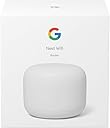
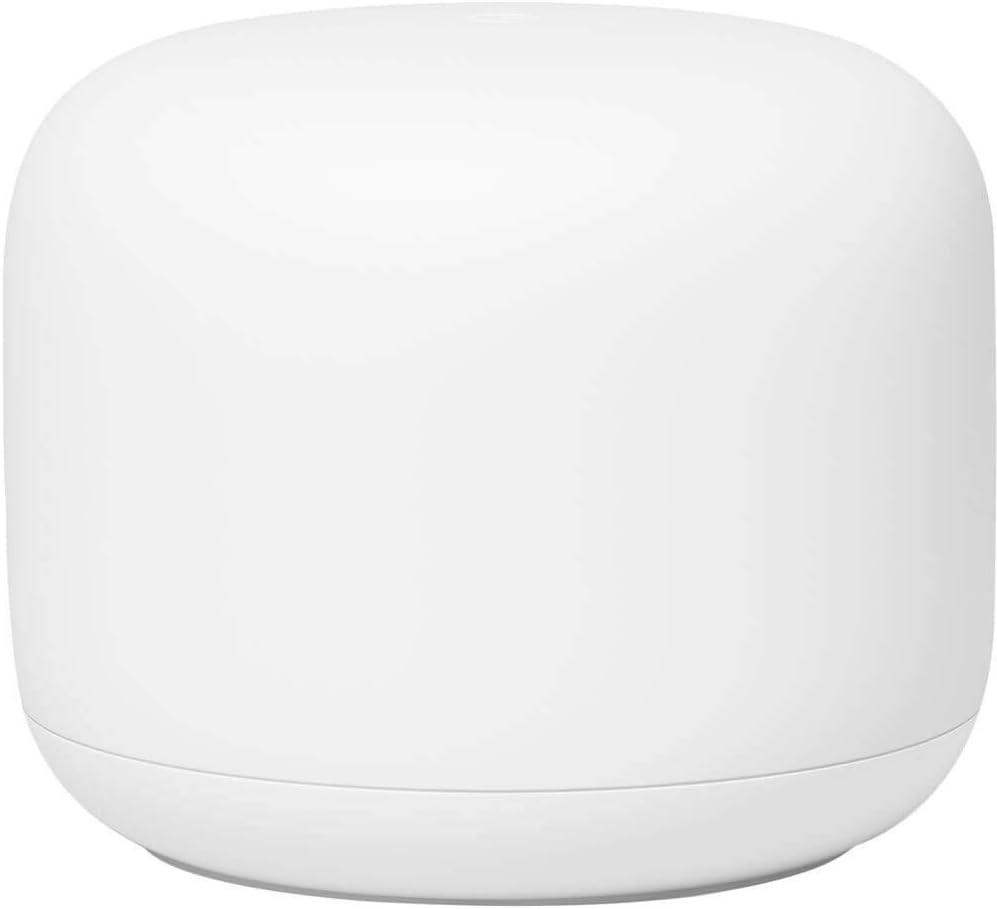
Google Nest Wifi is a sleek, dual-band mesh Wi-Fi system delivering up to 2200 sq ft of high-speed coverage per router. Designed for easy setup via the Google Home app, it eliminates dead zones by expanding a unified network with additional points. Featuring WPA3 security, Ethernet ports for wired connections, and compatibility with smart home devices, it’s the perfect upgrade for seamless, reliable internet throughout your home.


| ASIN | B07YMKD6SM |
| Antenna Location | Home |
| Antenna Type | Internal |
| Best Sellers Rank | #2,140 in Electronics ( See Top 100 in Electronics ) #17 in Whole Home & Mesh Wi-Fi Systems |
| Brand | |
| Built-In Media | AC Power Adapter, Ethernet Cable, Quick Start Guide |
| Color | white |
| Compatible Devices | Laptop, Personal Computer, Smartphone, Tablet |
| Connectivity Protocol | bluetooth, ethernet, wi-fi |
| Connectivity Range | 2200 Square Feet |
| Connectivity Technology | Bluetooth |
| Control Method | Voice |
| Controller Type | Amazon Alexa |
| Coverage | Up to 2200 sq ft per router, up to 4400 sq ft with multiple routers |
| Customer Reviews | 4.4 out of 5 stars 12,465 Reviews |
| Data Transfer Rate | 2200 Megabits Per Second |
| Frequency | 5 GHz |
| Frequency Band Class | Dual-Band |
| Global Trade Identification Number | 00193575001593 |
| Has Internet Connectivity | Yes |
| Has Security Updates | Yes |
| Is Modem Compatible | Yes |
| Item Dimensions L x W x H | 4.33"L x 4.33"W x 3.56"H |
| Item Type Name | Wifi Router |
| Item Weight | 1 Pounds |
| LAN Port Bandwidth | 1 megabits per second |
| Manufacturer | |
| Maximum Upstream Data Transfer Rate | 1091 Megabits Per Second |
| Mfr Part Number | GA00595-US |
| Model Name | Nest Wifi |
| Model Number | GA00595-US |
| Number of Antennas | 2 |
| Number of Ports | 1 |
| Operating System | Linux |
| Other Special Features of the Product | Dual-Band 2.4 GHz/5 GHz Frequencies; Whole Home Coverage; Security; Built with Sustainable Materials |
| Router Network Type | mesh |
| Security Protocol | WPA2, WPA3 |
| Smart Home Compatibility | Smart Home Compatible |
| Special Feature | Dual-Band 2.4 GHz/5 GHz Frequencies; Whole Home Coverage; Security; Built with Sustainable Materials |
| UPC | 193575001593 |
| Unit Count | 1.0 Count |
| Warranty Description | 1 year |
| Wireless Communication Standard | 802.11ac |
| Wireless Compability | 802.11ac |
V**A
I don’t understand how I lived without this...
I live in an old SF home, so narrow and long. There was decent WiFi in about 1/3 of the house. I got an extender about a year ago, but with the current wfh situation, it just wasn’t cutting it. This beauty arrived and, within 10min, I had it all set up and working. First, I installed just one to see the range, and was happy to find excellent signal in 90% of the house. I installed the second router on the other end of the house - lower floor - and now we are fully covered! Three adults working from home; simultaneously streaming, gaming, and in virtual conferences without a single issue. Speed has not been compromised at all and there are no dead zones... I am completely in love! Here are some details, for those that aren’t sure: - When I researched options, I found that most extenders are approximately the same price (for the same range), if not more expensive. - This system has two elements: 1. Router: which needs to be connected - via Ethernet cable - to your existing WiFi Router and it does not replace it. 2. Points: They are used to extend the range of the router and can connect wirelessly. - Most Google WiFi products are compatible with this system and can act as ”points”. - Routers can also be used as “points”, and will connect wirelessly to the main hub (the one connected to your original router). - You really only need one router. Having said this, it was nice to install two routers, since they each have Ethernet connection capabilities. This allowed me to directly connect certain devices, like gaming consoles, so the internet connection is strong and constant. Points don’t have Ethernet ports. - You need the Google Home app and a Google account for the set up. The mesh also needs a few minutes, about 5-10, to be established. This analogy helped me understand it a little better: Imagine you are underwater and WiFi is air. Your current WiFi router creates a big air bubble. You are limited to move around the size of the bubble your router created. An extender would be like creating a separate air bubble so you can go farther. these two are not connected. Each extender you add creates its own bubble, but if the bubbles are too far from the main one the quality of the air suffers. This system is different, it creates a mesh - this means that, when you plug a Nest router into your existing WiFi router, it creates a big bubble, bigger than the existing one. Then you add a “point” outside your bubble and, instead of creating a separate bubble, it expands the main one. The more “points”, the bigger the bubble. As long as the “points” are a certain distance from one another, you can extend the bubble as far as you like from the main router. The air quality is the same throughout this giant air bubble you just created. Hope that helps!
R**T
The improvement is not where you think it is. Totally worth, so simple!
Tips: 1- Do not be affraid of installation, it was very simple. The routers and the points -or 2 routers in this case- create a mesh by themselves wihtout any user intervention. The app guides you through the process. As a tech guy, this was so easy I feel guilty :p 2- This mesh will improve your WiFi speed across the house for any internet service up to about 600-700 Mbps, I daresay. WiFi has its limitations, anything above that is wishfull thinking due to the harware constraints of our current phones and devices. But... the real improvement is not the "speed" itself (read below). 3- This is the 2 router pack, not the classsic "router" and "point/Google assistant" pack. I chose this one expressly since the routers have ethernet LAN RJ45 jacks (ports), which the "points" lack, because my house is already wired with LAN ethernet cable and I already have plenty of "hey google" things around =) Note: you will need proper harware to get anything above 50 Mbps, e.g.: Cat. 5e or Cat. 6 cable , and if you use an ethernet switch make sure it is Gigabit compliant, otherwise stick to the standasrd WiFi mesh, you'll be surprised: this WiFi mesh will be faster than a 10/100 cable or a "Fast Ethernet" switch. 4- It is fast, indeed, but take note: since the mesh talks in both directions, there will be a natural minimal speed loss when connected to a "point" (or the secondary "router" in this case). E.g.: when the mesh is connected wirelessly (pure WiFi mesh), I get 100 Mbps near the router and 50-70 Mbps near the "point"; but when wired (ethernet backhaul between the 2 routers) I get 80-100 Mbps near the "point". I think this is expected, completely normal due to the 2-way wireless communication between both mesh devices. 5- My ISP installed a coaxial Modem/Router combo unit in my house, I was affraid of the dared double-NAT menace, but to my relief they got allong surprisingly well. Actually, I kept my original WiFi network and the new nest mesh network up simultaneously for a couple days, while migrating everything (the easy and recommended way would have been to disable the old WiFi network and use the same SSID name and password on the new one, but I wanted to experiment a little). Anyhow, although they seemed to work fine together, I decided to turn off the ISP Modem/Router's WiFi radios to avoid any possible interference. WiFi can be grumpy when crowded. 6- I chose the newest "Nest" WiFi mesh routers over the previous "Google" WiFi mesh or the Nest points because they have: a) faster WiFi conection (AC2200 vs AC1200), b) bigger area coverage (205 m2 vs 140 m2), c) more antennas (4x4 vs 2x2) and d) the capability of transmitting data to multiple devices simultaneously (MU-MIMO vs no-nothing). THIS is paramount. The improvement is noticeable when the kids are watching video streams and playing games while I hold to that important zoom meeting. (Note: The Nest points do have MU-MIMO, too, but lack the extra speed and extra coverage of the Nest routers. In exchange, they double as Google assistant speakers, so choose your potion) 7- Get both apps, Google Home and Google Wifi. They seem to be migrating everything from Google WiFi to Google Home, but meantine get both! Google WiFi gives some extra options such as a speed test of all connected devices or information about the connection type between points, wired or wireless. In conclusion, the real "speed", the improvement over a standard WiFi network is not measured in Mbps by Speedtest, it's not even the extended coverage or the transparent, automatic handling of WIFi when moving around the house without hiccups nor the beamforming technology which sends the WiFi signal straight toyour device: it's how it handles devices and distributes bandwidth, making each device in my house faster individually, all at the same time, keeping my data transmission speedy and steady when the kids are squeezing the WiFi signal and my internet bandwidth. The only thing I would have wished for is WiFi 6 support (future proof). Otherwise well done, Google. I'm impressed. I have spoken.
H**D
Excellent... A "Wow!" Product
It is not often that I install a technical upgrade that is so very significantly better than what it is replacing. But this product really is a game-changer! I originally bought a Nest WiFi system with a router and three Nest WiFi points. I followed the pretty simple instructions, and the installation was amazingly simple. The whole thing is a paradigm change, since instead of the user worrying about wifi bands and various router parameters, these marvelous little router/points do the "worrying" for you -- and you end up with high-powered, very effective solutions. My initial installation was in a private house, where it replaced a single standard router. We had long suffered with relatively poor wifi when we were not near the router, but had adjusted to that as a fact of life. That was part of why we over-ordered the Nest WiFi points... we wanted the new system to be good! Installation was a breeze. The system did what it did all by itself, and in like ten minutes was up and functioning. Gingerly, out of curiosity, I unplugged the Ethernet cable from my "main" PC and connected it to wireless. The speed tests rated my wireless Internet speed almost as fast as my wired speed! My experience was good enough that I quickly decided I did not need the third Nest Wifi point at all. I then decided to buy this router and use the now-spare point in an installation in my parents' house. They had a Google Chromecast installed, so I figured the install might be more complicated, but it was just as quick and just as perfect as my initial install, with the same great results. For my initial install, I had ordered a low-cost Linksys switch, since the Nest Wifi router comes with only one available Ethernet port. I ended up not needing the switch, although I did install it (and it works fine). For my second install, I took a chance and didn't bother with a switch. The wireless reception was good enough that I had no need for a switch whatsoever. And the back of that house, which, with a TPLink extender had had only poor wifi, now had really good wifi access! The only problems I had with this was that I had a Sonos system installed in my first location, and Sonos and mesh networks didn't seem to get along well (depending on what connected to what, the Sonos apps couldn't find the Sonos speaker systems). Interestingly, there was some advice online that said something about letting it work itself out, and I just left it alone for a few days, and then it was working just fine! My Sonos apps could connect to any Nest Wifi point and still find the Sonos system! If you want to spend time tuning the innards of a router technically, this might not be the ideal system for you. But if you want something that installs very easily and is high-powered and just works (almost magically!) all by itself, this system is just marvelous.
S**D
Does The Job
It was a relatively painless installation and has worked well for our purposes.
S**.
Amazing speeds, easy install, but only has ONE ethernet port!
I guess I must’ve been living in the dark ages all this time. For the past 5 years I had a regular router. You know the kind. Multiple antennas. From a brand that has been making modems and routers for decades now. I wanted the Google Wi-fi, but those pills were a little pricy and I couldn’t be sure that they would reach everywhere. So I opted for a range extender instead. My apartment is two floors. My router is downstairs in the living room with my bedroom directly above that. Wi-fi was always spotty and was giving me 80mbps max, 30 on a good night, but most often 10 and I had to restart it multiple time, sometimes on the same night. Range extender does nothing. $25 down the drain. Now I see the Nest is available. Should I get the router and the additional “wi-if point”? I don’t need a Google speaker. So I only buy the nest router. Just to test it out. I’m thinking if I end up needing more speed upstairs, I’ll just buy a second router and install it upstairs as I hear the “wi-if point” cuts speeds down in half. I’m tired of not getting my full money’s worth. Holy crap! I’m in my bedroom upstairs, on top of my queen size bed, the door closed, my smartphone bundled up in the covers, and the internet speed tester is still off the charts. 114mbps. In other words, I’m getting the speed I’ve been paying for all these years. And it stays that way! I checked the next morning, then the next afternoon and evening. Each time I’m at full speed everywhere within a 100 foot radius of that router, regardless of walls or floors. So are there any downsides? One, although it doesn’t affect me personally. Remember when I said I didn’t want to buy that additional wi-fi point? I didn’t want getting any speeds slower than what comes directly from the router itself. If I had needed a second router to install upstairs, I would have done that. Now my modem only has one ethernet port. I installed the Nest into that. But the nest only has one additional ethernet port other than the input from the modem. So I plugged my desktop into it. What would I have done if I wanted to install a second router somewhere in the house? Or for that matter, ANY device that I wanted to connect directly to the internet via a cable? Even my old crappy router had 5 separate ethernet ports. Google thinks one is enough? That really blows, especially if you don’t want to rely on their wi-fi points to get further wireless connection in a larger space. Google, please add more ethernet ports.
A**R
Great Little Router
I purchased this after issues with my Netgear Nighthawk router. Set up was easy, and simple. Speed is excellent and range is great. To note I have an older home built in the 50's roughly total square ft space is 1200. So all I needed is just the router. I love that I can see every thing that is connected to the router (even when your not at home as long as you have the google app on your phone or tablet!! You can controll remotely as well!!) I love I can see how much data any given device is using. I do like that you can give priority to certain things connected to the router. Great for families with kids. Gives you the option to pause internet connectivity at specific times to specific devices! I had to call customer service because when I first installed it I was getting about 65mbps and have 300mbps internet. I spent probably about an hour with tech support trying to figure out why it wasn't getting over at least 150mbps. Finally after all the trouble shooting the issue was that the google router assigns which frequency to connect a device to. So most computers get assigned to a 2ghz frequency not the 5ghz. Cellphones and some tablets get connected to 5ghz. Your smart devices like TV, Android Tv Box will get 5ghz, and small wifi enabled devices connects at 2ghz frequency. Once I understood that it made sense and was working as it should. However, it would have been nice to be told this first before going through trouble shooting steps. It would have been a shorter support call if they had said that first. Hopefully other Google Support staff are more knowledgeable, and I just got a newbie. I do like that you can test the internet speed directly through the google app. Very convenient. One thing I do not like about it is that you can not choose which frequency to connect a device at. It automatically assigns the device to a frequency (2ghz or 5ghz). This is a little inconvenient when downloading a large file to your computer. It takes longer because it's only connecting at the 2ghz frequency. Hopefully they will add that feature with future updates. It's a small inconvenience for me though. All around I am very happy with the purchase.
I**D
This product has significant issues
BEWARE THIS PRODUCT HAS MAJOR ISSUES that may or may not affect you, depending on how you set it up and use it. I'll share my experience, but you decide whether these issues are essential for your usage scenario or not. Here is the executive summary before I get into technical details. 1) This product is excellent when it works as expected (unfortunately, that's not always the case). Setup is easy and straightforward. 2) The functionality of the device is extremely limited if you opt-out of using Nest Wifi cloud services. Enabling cloud services is a must to have this device provide all of its functions. 3) Local network throughput exhibits severe performance degradation over time if your routers are not hardwired. 4) The router is unable to re-establish Internet connectivity after a power outage (this is precisely the case when using Netgear CM500 as a modem) This review is for 2-pack Nest Wifi routers bundle. Both devices are identical routers, but for the sake of simplicity, I'll be calling the main one Router and the secondary one Point. My initial setup was a true wifi mesh with no hardwired connection between Router and Point. I did extensive post-install testing, and Nest checked all the boxes - 330 Mbps Internet throughput, 600 Mbps over the local network from one device connected to the point to another device connected to the router. All seemed well, but after about 24 hours, I started noticing performance degradation on my local network. At first, the throughput from my Macbook to my NAS dropped down to 100 Mbps, then 50 Mbps, and at some point, it stalled at a snail speed for 150 kbps (yep, kilobits). I got in touch with Google support right away, and they "fixed" the issue by hard rebooting the network and cloud services (make any change in your router's DNS settings, then turn cloud service off/on and reboot the network). However, it was just a temporary fix as the issue came back the next day. I've been in touch with Google support a couple more times, but they were less than helpful. They blamed interference; they blamed the local DNS server; they blamed my MacBook. None of these was the culprit as everything worked well before I bought Nest Wifi, and everything works fine now after I hardwired the router and the point. The only "solution" they could provide was the hard network reboot that "fixed" the issue for less than 24 hours every single time. About a week later, I decided to run a Cat6 cable from the main router to the point, and to my surprise, it completely solved this issue. I'm deducting 2 stars because of this issue. I'm expecting a Wifi mesh product to work as a true Wifi mesh, and hardwiring must not be a requirement. The second major issue I ran into is exceptionally annoying. Nest Wifi router is unable to re-establish Internet connection after a power outage. It's not just a matter of inconvenience as I have to reboot the modem after every power outage manually, but it's also a security concern as our Nest cameras are not coming back online after a power outage when we are not home. Google support wasn't helpful here either. They blamed my ISP and "the extent of the outage", but it has nothing to do with the ISP as I can reproduce this issue by cutting the power on the power strip that both router and modem are connected to. There are numerous similar complaints all over the internet going back 2 years, so it's definitely a well-known issue, and Google still can't get their act together to fix it. How do I know it's an issue with Nest Wifi? First, the network boots up just fine if I swap the Nest router with my old router (8 years old Apple Time Capsule). Second, the modem shows all 5 lights green, but still, there is no Internet connection. Third, if I unplug the Nest WAN ethernet cable, run it into a switch and log into the modem's UI, it shows the link is OK. I have a feeling it has something to do with the timing of each device's boot time. It seems like the Nest router expects itself to be the first one to boot up. Well, you can't expect that if you are that slow... My old router boots up much faster than the Nest router, so that may be the answer here. Anyway, I thought I was clever enough to code a script on my Raspberry Pi, detect this condition, and force-reboot the modem if there is no Internet connection. I thought I was all set, but I was wrong. We had another power outage last night, and as you suspect by now, my network didn't come back online. Why? Because the Nest router wouldn't route packets to the modem. My next idea is to install smart power plugs and control the power from Raspberry Pi. I'm deducting 2 stars because of this issue. This product could have scored all 5 stars in my review if not for the two major issues I described above.
B**R
Works as advertised if your patient and willing to try.
I used to own the original google WiFi mesh (with a onhub TP-link) back then it worked like a charm but when I had 3 people in the house watching 4K movies/tv, gaming and streaming the google WiFi couldn’t handle it. I switched to an ASUS router eliminated the congestion but had dead spots that well I just had to live with. Then came the Nest WiFi. I went back and forth, on getting this 2 pack router set or the one router and one mesh point set. I was leaning towards the 2 router pack since I was able to wired backhaul both of them. Set up for the first router (Living room) was a breeze. Just as google advertised it would do. {{{the second router did take some time}}} I did not set up the 2nd router in the living room as my primary router. What I did was connect both devices to their designated areas, the living room As primary and the basement as router two. Again the first router took minutes to get connected. Had to restart modem too which was normal to get both the primary router talking. Router number two, however, probably took me 10-20 minutes of watching the setup and paint dry. It did say in the app that it failed to creat mesh network or failed to connect to cloud server, etc etc. However with a bit of patience I just re-continued the setup. Probably re-ran the set up about 4-5 times. Eventually it finished the setup and both routers were detectable in the google home app/WiFi app. The problem now was the phone I used to connect everything is only connecting to the primary. I am standing next to the 2nd router and it is not auto connecting to that. Mesh test says it’s perfectly fine and google sees 2 points. I rebooted both routers manually, power cycled the primary router first then the 2nd one about a minute after. Voilà. 2000sq foot house extremely blanketed with mesh network. A bit overkill but dead spot is a joke now. I find it to be amusing walking around my house looking for dead spots now, even outside of my house I can get the mail and still get 200 mbps down. Long story short patience is key. If you are dedicated as I was you’ll get it to work. If it doesn’t work well your buying it from amazon, return it. There is some satisfaction there. I’m giving it 5 stars because it works as advertised, good range, strong connection. No WiFi 6 for being a new mesh WiFi in 2019, but with the issues I had before this nest WiFi fixed it all. Added the original google WiFi router too to my third floor As a {{wireless}} mesh node. Overkill. But now know one in my house should complain.
H**S
Overpriced and quite hopeless in terms of range; not a good buy for India
1. Ridiculously overpriced for the performance. My Netgear R7000P works much better. 2. "intelligent" switching between 2.4GHz and 5GHz means you *cannot* choose it yourself. 3. Meshing between levels probably works in countries with wooden floors, but with concrete in India, it doesn't work well - horizontal range is less 50 ft between two levels. 4. Doesn't show devices connected unless you agree to the "cloud" option where it will log every single device and probably its activity. 5. No configuration options for power (of the radio), access-control using MAC, etc. Please don't buy this if you're in India.
Y**N
Great product!
Been using this product about a year now. It’s pretty awesome! My apartment wasn’t really set up well for me to run an Ethernet cable to my PC, but this still gives you great speeds for whatever you need it for, without the need to run wires. Very happy with the purchase after a year. Plus troubleshooting is really easy with the google home app. Would recommend!
N**S
Fantastic product
The Nest wifi mesh is very easy to set up, works seamlessly with the google home app and the mesh is flawless. The router communicates with the subunit automatically and without any problems. The wifi signal finally fills my house, and the speed is great. Unplugging/rearranging the router and subunit did not cause any disruption. Once they powered back on, connection was immediately restored. Very happy with this item.
N**A
رائع
اشتريتة قبل 5 سنوات ممتاز جدا
A**.
Mejora la velocidad del internet y la cobertura
Excelente producto, vale la pena el costo que tiene, es muy fácil de instalar con el celular, solo se tiene que tener una cuenta de google. El rango que cubre el wifi es muy amplio, para una casa mediana con 1 o 2 bastaría para tener wifi en todos lados, teniendo en cuenta donde esta el modem. En mi caso tenía un modem era de Telmex con 200mb contratados, al hacer un speedtest no subía de los 40mb, después de la instalación del nest ya alcanza las velocidades contratadas.
Trustpilot
3 weeks ago
3 weeks ago